Mixer & Instrument Hosting
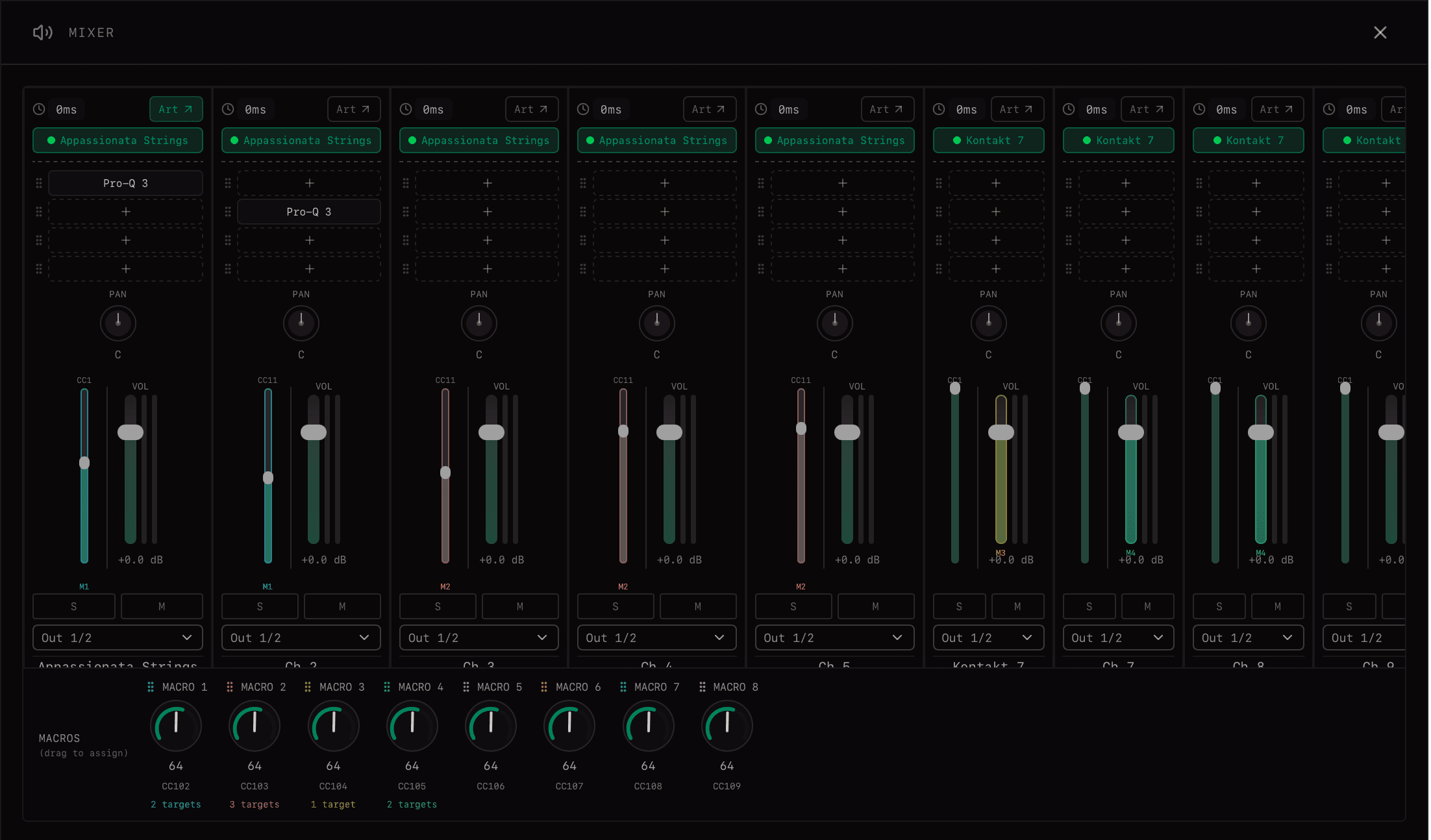
The mixer is where notes become audio. Each of the up to 64 output rows has a mixer channel.
Loading an Instrument
Click the instrument slot in a mixer channel to open the plugin browser. Select any AU or VST3 instrument. The instrument's audio output feeds the mixer channel.
Tip: Hosted instruments save their full state with sound setups and full setups, including any patch or parameter values set within the instrument's own UI.
Mixer Controls
| Control | Description |
|---|---|
| Volume | Channel output level. |
| Pan | Stereo position (−100 left to +100 right). |
| Mute | Silence this channel without changing settings. |
| Solo | Mute all other channels. |
| Latency Offset | Manual timing compensation for a hosted instrument channel. |
| Output Bus | Routes the channel audio to a stereo host output pair. |
Host Output Routing
Mixer channels can be routed to stereo host output pairs, from the main output through additional pairs such as Out 3/4, Out 5/6, and up to Out 31/32.
Use output bus routing when you want to mix or process sections on separate DAW channels after Filament has generated the arrangement.
Effect Chain
Each channel has 4 effect slots. Load AU or VST3 effects (EQ, reverb, compression, etc.) into any slot.
- •Effects process in order: Slot 1 → Slot 2 → Slot 3 → Slot 4
- •Each effect can be bypassed individually
- •Effect state is saved with sound setups and full setups
MIDI CC Faders
Each mixer channel has MIDI CC faders that scale incoming MIDI controller values before they reach the instrument. This is different from audio volume—you're shaping the MIDI signal itself.
Balancing Sections and Libraries
The primary use for MIDI CC faders is achieving balance between different sections and sample libraries. By scaling mod wheel or expression rather than just mixer volume, you get a more natural balance:
- •Different libraries respond differently to expression—scaling MIDI levels the playing field
- •The instrument's dynamic layers are triggered correctly, preserving the sample's natural tone
- •Loud brass from one library can be tamed to sit with quieter strings from another
Adjusting audio volume alone often sounds artificial—instruments get quieter but their timbre doesn't change. MIDI CC scaling makes instruments play softer, triggering quieter dynamic layers and producing a more realistic blend.
What the Mixer Saves
When you save a sound setup or full setup, the following is preserved:
- •Which instruments are loaded in each output row
- •All effect chains and their settings
- •Volume, pan, mute, solo, latency offset, and output bus
- •Macro control definitions
- •Output row names and count
Mixer and hosted-instrument state is shared across keyswitches. The keyswitch changes the musical routing and module behavior; it does not reload the instrument stack.
Related
Mailing list