MuseScore Bridge
MuseScore Bridge moves a performed Filament orchestration toward notation. Record the routed MIDI, clean the timing and note lengths, map output rows to score staves, then send the result into MuseScore.
Enable the MuseScore Bridge
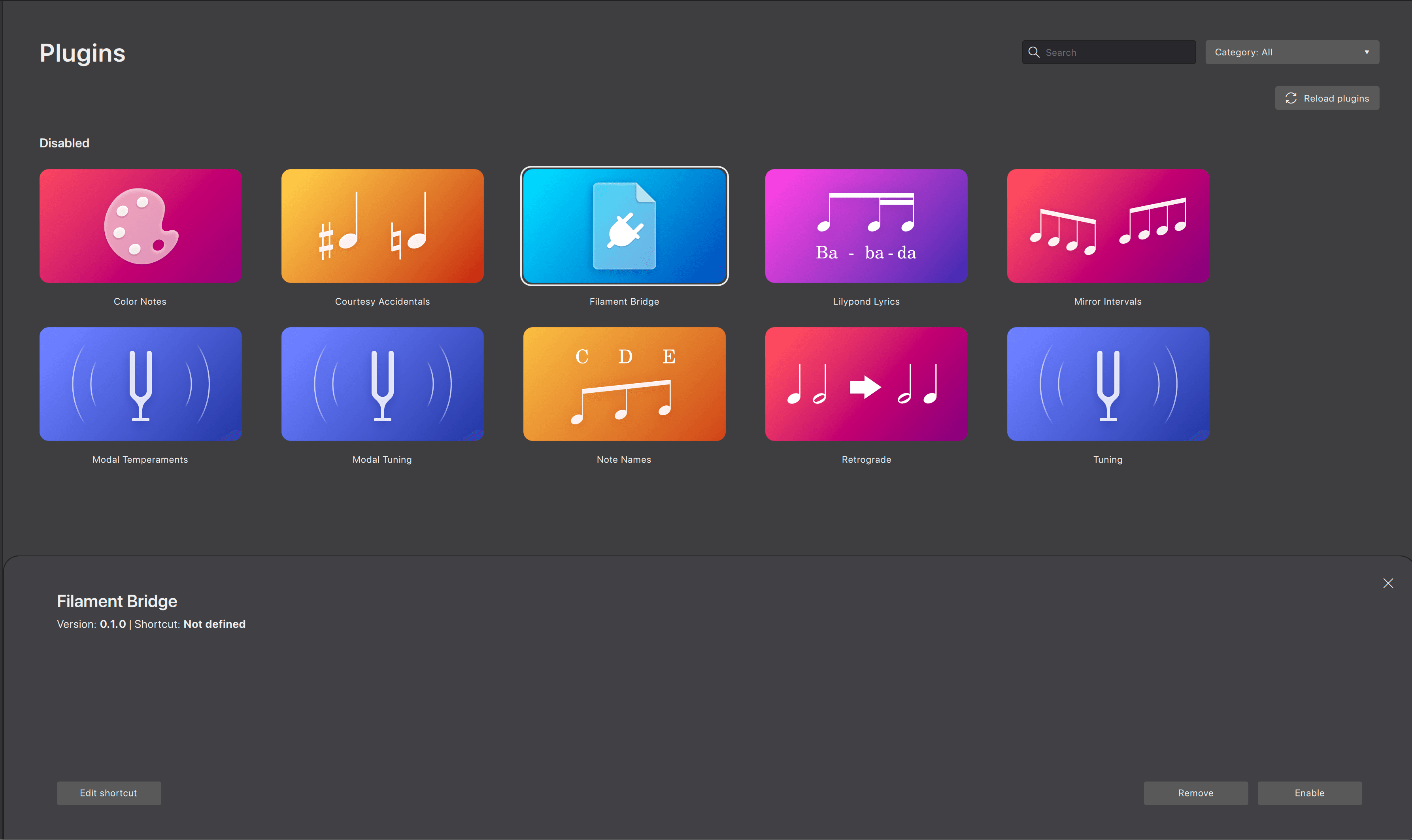
MuseScore needs the Filament Bridge plugin enabled before it can receive a bridge job from Filament.
- •Install the optional MuseScore Bridge component.
- •In MuseScore 4, open Plugins → Manage plugins....
- •Select Filament Bridge and click Enable.
Recording for MuseScore Bridge
MuseScore Bridge works from a Filament MIDI recording. The first step is to capture the performance you want to turn into notation.
- 1Set up and perform through Filament as normal. The bridge records the routed output rows, so the captured parts reflect the orchestration you actually played.
- 2In plugin mode, start recording in Filament, start the DAW transport, perform the section, then stop the DAW transport to finalize the capture.
- 3In standalone mode, set Filament's recording tempo, time signature, metronome, and count-in, then use the standalone record button to capture and stop the performance.
For the wider MIDI recording, export, and drag workflow, see MIDI Out and Recording.
Bridge Workflow
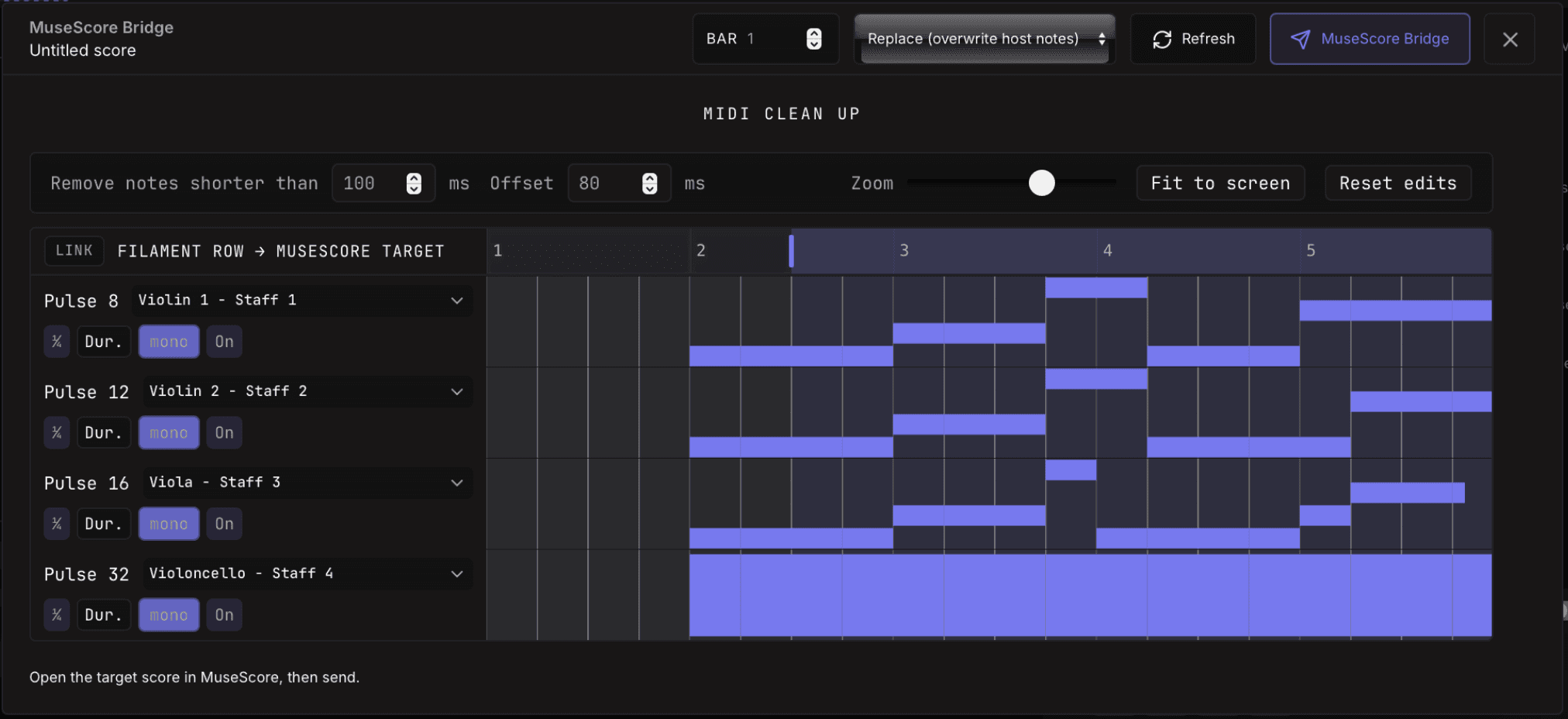
- 1Review the captured parts in the bridge panel and choose the region you want to send.
- 2Apply cleanup settings such as quantize, performance offset, short-note removal, monophonic cleanup, legato behavior, and region trim.
- 3Map each Filament output row to the target MuseScore staff. For piano material, use the split controls when left and right hand material need to land on separate staves.
- 4Send the bridge job from Filament, then run Filament Bridge from MuseScore's Plugins menu to paste the result into the score.
Copy Into the MuseScore Session
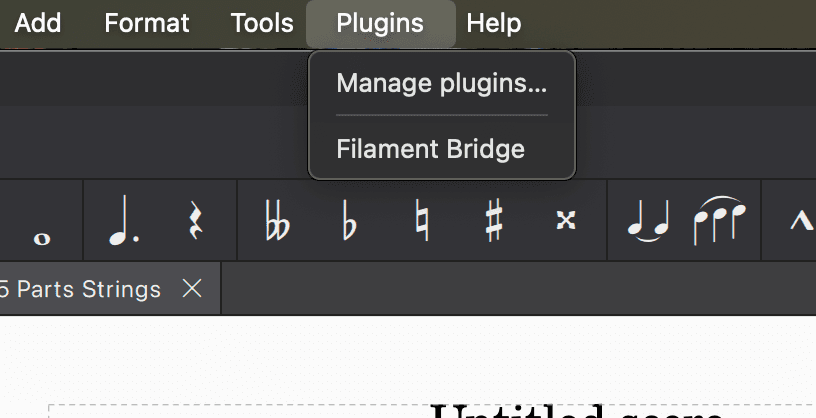
After sending from Filament, switch to MuseScore with the target score open. Click the Plugins menu, then choose Filament Bridge. The plugin reads the latest bridge job and inserts it into the open session.
Cleanup Controls
Quantize
Quantize start times and durations before sending the part to the score, including triplet grid values where appropriate.
Short-Note Removal
Remove tiny notes that are useful in performance capture but not useful in notation.
Monophonic Cleanup
Clean overlapping notes when a target staff should behave as a single melodic line.
Legato and Bar Tail
Adjust note endings so sustained lines read more cleanly in the target score.
Limits to Know
The bridge is a transfer and cleanup workflow, not a finished score generator. Expect to review notation in MuseScore after transfer, especially for expression markings, slurs, beaming, and engraving decisions.
Related
Mailing list